
Can I Use My Phone for Online CE Courses? What Works
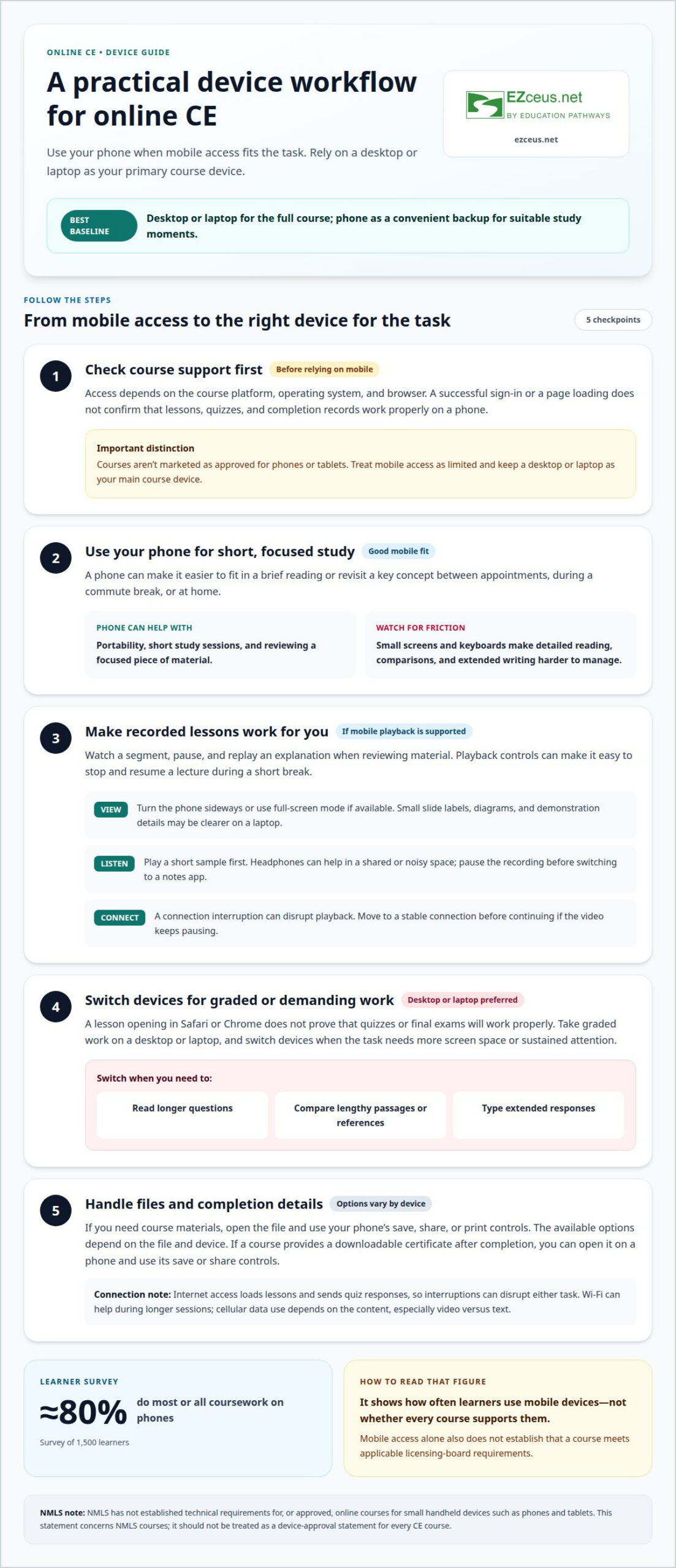
Your phone is convenient, but it shouldn’t be your primary device for online CE. If you’re wondering, “Can I use my phone for online CE courses?” the practical answer is that it may help with some coursework, but courses aren’t marketed as approved for phones or tablets. Plan to use a desktop or laptop as your main device.
That distinction matters when you’re fitting coursework around a busy schedule. A phone is easy to reach, but its smaller screen and keyboard can make longer lessons and written tasks harder to manage. Convenience doesn’t always make a device the best fit for completing a course.
This guide explains what to consider when using a phone for coursework, where mobile learning can become frustrating, and why a desktop or laptop may be a better primary device. You’ll also learn when your phone can be useful for brief study sessions and when it makes sense to switch devices.
Key Takeaways
- Separate basic mobile access from course compatibility before relying on a phone to complete coursework.
- Use your phone for convenient, shorter study sessions, but consider the screen and keyboard when coursework needs more focus.
- Video lessons may be easier to view on a phone than longer reading or writing tasks, but the course’s device support still matters.
- Choose a desktop or laptop as your primary device, and keep your phone as a backup for suitable study moments.
What Can You Do on a Mobile Device?
Phone access depends on the course platform, operating system, and browser. Courses aren’t marketed as approved for devices other than desktop or laptop computers, so treat mobile access as limited.
App and Operating-System Compatibility
App compatibility means a course’s mobile app must work with the phone’s operating system. That matters because signing in doesn’t prove lessons, quizzes, and completion records work there. Learn Stage’s mobile app is planned, but that plan doesn’t establish current availability or supported operating systems. Until those details are available, use a desktop or laptop as your main course device.
Mobile Browser Compatibility
Safari or Chrome may open a course in a mobile browser, but a page loading doesn’t guarantee that every feature works well. Controls, file links, and quizzes can be awkward on a small screen. Screen sharing may also leave little room to view both the lesson and shared content. To download or print materials, open the file and use your phone’s save, share, or print controls. The options depend on the file and device.
Quizzes and Final Exams on Phones
You can take quizzes or final exams on a phone only if the course interface supports those activities there. A lesson loading in Safari or Chrome doesn’t confirm that quiz questions, answer choices, or exam submissions will work properly. Because courses aren’t marketed as approved for phones or tablets, use a desktop or laptop for graded work. A narrow screen can also make longer questions harder to read and answer.
Internet, Data, and Device Requirements
An internet connection loads lessons and sends quiz responses, so interruptions can disrupt either task. Wi-Fi can help during longer sessions, while cellular data use depends on course content, especially video versus text. Device requirements depend on the platform’s supported browser and operating system. If a course provides a downloadable certificate after completion, you can open it on a phone and use the save or share controls. Printing depends on your phone and available printer options.
Smartphone benefits and limitations for online learning
A smartphone can make brief study sessions easier to fit between appointments, during a commute break, or at home. You can keep course access close and use short periods of free time. But convenience doesn’t make every task comfortable. Reading detailed material or comparing several ideas takes more effort on a small screen than on a larger display.
A survey of 1,500 learners found that almost 80% do most or all of their coursework on phones. That finding shows how often learners use mobile devices, not whether every course supports them. For CE, separate personal preference from course access: mobile convenience is useful, but course features and completion tasks matter too.
Are online CE course prices or features different on mobile? A phone itself doesn’t determine a course’s price. Available features can differ by platform and device, so a button or activity that appears on a computer may be harder to use on a phone. For example, switching between a lesson and reference material can require repeated screen changes.
Do licensing boards accept CE courses completed on a smartphone? The device alone doesn’t determine whether CE qualifies. Acceptance depends on whether the course meets the applicable board requirements. Mobile access by itself is not proof of course eligibility.
Phone learning works best for focused tasks, such as reviewing a short reading or revisiting a key concept. It’s less practical when you need to compare lengthy passages, keep several details visible, or type extended responses. Small controls can also slow navigation, especially on a page with dense text.
Use your phone when portability helps you study, then switch to a desktop or laptop for work that needs sustained attention. This keeps mobile access convenient without assuming it can replace a full-size device for every course activity.
Using smartphones for videos and recorded lectures
A recorded lecture can fit a short study break: open the lesson, watch a segment, then pause before returning to work. On a phone, playback controls let you stop and resume without searching for your place. For example, pause when an instructor introduces a sanitation procedure, then replay the explanation before continuing. This works well for reviewing material, provided the course supports mobile playback.
Small screens can make visual details harder to follow. A close-up demonstration, slide label, or diagram may be clearer on a laptop than on a phone. Turn the phone sideways if the player allows it, and use full-screen mode when available. If you need to compare a lecture with a separate course document, switching between apps can interrupt your place in the recording.
Audio matters too. Play a short sample before settling in, especially in a shared space or noisy salon. Headphones can help you hear an instructor without raising the phone’s volume. If you take notes, pause the recording before typing; switching between a video and a notes app can make you lose track of a key example. Keep the course page open when possible.
Mobile playback also depends on the course platform and the device’s connection. A video that pauses repeatedly can interrupt instruction, so move to a stable connection before continuing. NMLS has not established technical requirements for, or approved, online courses for small handheld devices such as phones and tablets. That statement concerns NMLS courses, so don’t treat phone playback as approval for every CE course.
Use phone recordings for review when the controls and visuals are comfortable. For a detailed demonstration or material that requires close comparison, switch to a desktop or laptop. That choice keeps the lecture visible while you follow related course content. A phone can support flexible viewing, but the course’s device support remains the deciding factor.
Recommended primary device for online courses
Use a desktop or laptop as your primary device for online CE coursework. Courses aren’t marketed as approved for phones or tablets, making a computer the practical default. Its larger screen gives lessons, course controls, and reference material more room. Keep your phone for brief review, rather than relying on it for every course task.
Choose the computer you can use comfortably throughout the course. For example, a laptop lets you read lesson text while keeping course navigation visible. A desktop can work well in a fixed study space where you can return to the same screen. Device suitability is separate from whether a course meets your licensing requirements.
Before a study session, open the course on your computer and locate its lessons, materials, and assessment areas. This gives you a clearer view of how the course is organized. If you reach for your phone during a break, use it to review accessible material, then return to the computer for course activities that are harder to manage on mobile.
Consider the task, not just the device already nearby. A phone may suit a short reading during a quiet moment. A laptop is a stronger choice for following a lesson while consulting a separate document or working through longer questions. A desktop provides the same larger-screen setup when you study at a desk.
Make the computer your starting point, then use mobile access where it fits the course. This avoids assuming a phone supports every feature and gives you a consistent place to complete lessons and assessments. For online CE, a desktop or laptop is a practical primary choice, with a smartphone as a secondary option.
EZceus
EZceus provides self-paced online continuing education for cosmetologists and barbers in eligible states. If you’re ready to complete renewal coursework, use a desktop or laptop as your primary device for course activities.
Choose a course that matches your profession and state. EZceus offers Florida Cosmetology CE Renewal, Texas Cosmetology CE Renewal, Ohio Cosmetology & Barber CE, and Iowa Cosmetology CE Renewal. Students receive an instant digital certificate after completing their courses.
A phone may suit brief study moments, but a computer gives you a practical setup for working through coursework. For help with your CE course, contact EZceus.
Set Up Your Next Study Session
Turn your device choice into a workable study plan. Decide where you’ll focus, which device you’ll use for course tasks, and when you’ll set aside time. A planned study session can help you keep renewal coursework moving alongside work and other commitments.
If you’re deciding whether you can use your phone for online CE courses, consider how you’ll complete the course, not just how you’ll open it. Choose a setup that helps you concentrate, then set aside focused time for learning. Before you stop, note when you’ll continue so it’s easier to get started again.
Your plan can be simple: choose a study time, reduce distractions, and return to the coursework consistently. If you’re ready to find CE coursework for your profession and state, Contact EZceus about your CE courses. Take the next step at a pace that works for you, and keep your renewal progress moving forward.
Frequently Asked Questions
Can I Use My Phone or Tablet for Coursework?
You may be able to open course materials on a phone or tablet, but that doesn’t mean every activity is supported. A phone may help you review a lesson during a break; use a desktop or laptop for course tasks that are difficult to manage on a small screen. Treat device convenience separately from course compatibility, especially before relying on mobile access for required coursework.
What Requires a Computer or Laptop?
A computer is a practical choice for tasks that need a larger workspace, such as reading a detailed lesson while referencing a separate document. It also gives course pages and controls more room than a phone screen. If you’re preparing for an assessment or working through several course materials, use a desktop or laptop rather than assuming a mobile screen will suit the task.
Can you complete online continuing education courses on a smartphone?
Some course pages may open on a smartphone, but courses aren’t marketed as approved for phones or tablets. Opening a lesson isn’t the same as being able to complete every course activity on that device. For example, a mobile page might display text while a quiz or other interactive feature is difficult to use. Choose a desktop or laptop for course completion.
Do online CE course providers support iPhone and Android?
Support for iPhone and Android depends on the course platform and its features. A page that loads on an iPhone doesn’t establish that it works identically on an Android phone, or that quizzes and other activities function on either device. Before beginning a course, treat mobile access as a convenience rather than assuming both operating systems provide the same experience.
Which mobile browsers and operating systems are required for online CE courses?
There isn’t one browser or operating-system requirement that applies to every online CE course. Requirements depend on the platform delivering the lessons. Safari on an iPhone and Chrome on an Android device are examples of mobile browsers, but their presence alone doesn’t confirm course compatibility. A desktop or laptop is a practical choice when you need a reliable setup for coursework.
Do online CE courses require a computer for videos, downloads, or proctored exams?
Not every video or downloadable file requires a computer; access depends on the course platform and file format. A phone may open a lesson or document, but that doesn’t mean the full course is supported there. Assessment requirements also depend on the course. If an assessment is proctored, follow its stated device instructions rather than assuming a phone will meet them.